Working Hours: Complete Guide“Working Hours” is a LEXX feature for controlling when new positions can be opened. You set a schedule by weekday and hour, and the platform applies it to manual orders and trading strategies. You can restrict trading to selected hours, skip market openings and other periods, set a separate schedule for each strategy, and limit how long entry orders stay active. Availability: PLUS and above · Beta You must be signed in to your LEXX account. Your account schedule is stored on the server and available across devices. The feature is unavailable on plans below PLUS and in guest mode. Key principle Working Hours restrictentries, not exits. Open positions are not closed when a trading window ends. Take-profit, stop-loss, and other exit orders continue operating around the clock. Key concepts
How the platform distinguishes entries from exits
1. Working Hours widgetThe main control is locatedin the terminal's top bar. The widget displays the current trading window status and when the window ends or the next one begins. Clicking it opens a panel with today's timeline and quick controls. The widget is enabled by default. If it is hidden, open the“+” menu in the terminal header and enable the corresponding widget. 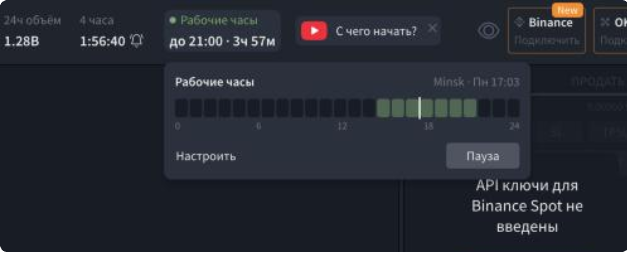 Understanding widget statuses
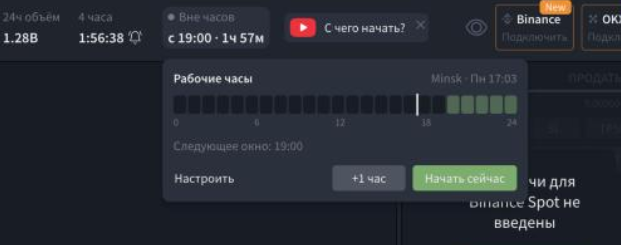 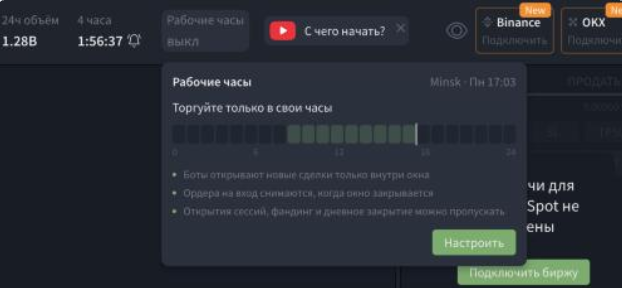 Quick-action buttons
Another one-hour extension becomes available15 minutes before the previous extension ends. Early starts and extensions are disabled in strict mode. Pausing manual trading and pausing strategies are different The regular “Pause” button in the widget applies to manual trading. Strategies continue following their own schedules. Exception: if an early session was started, pressing “Pause” cancels that early start for strategies awakened by it as well. 2. Configuring the account scheduleOpen the “Working Hours” widget and click“Configure”. The settings dialog allows you to enable or disable the schedule, select times, set exclusions, and configure order rules.
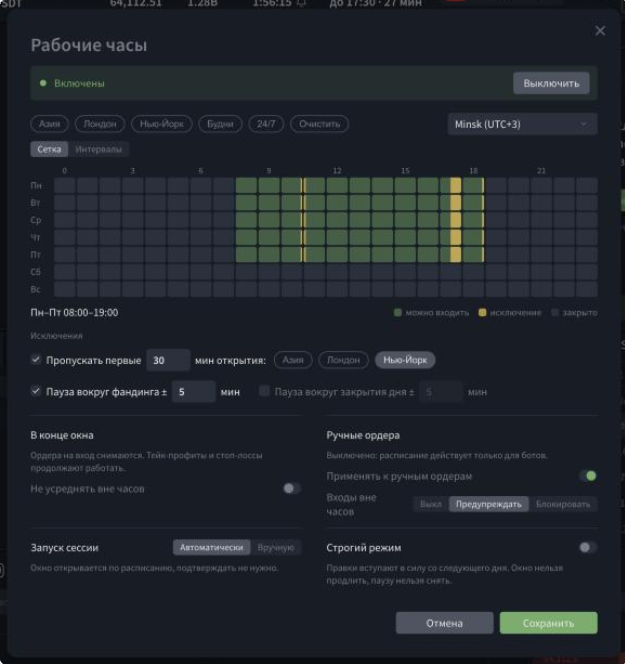 Enabling and disabling the scheduleThe schedule's current state appears at the top of the settings dialog.“Enabled” means the schedule is active.“Disabled: schedule inactive” means restrictions are temporarily off, but all saved intervals are retained. After changing the switch, click “Save”. 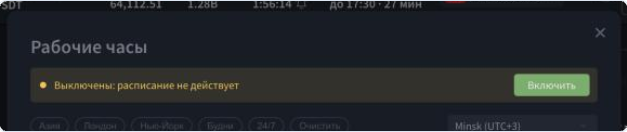 Weekdays, time intervals, and presets
Exclusions within a trading windowExclusions temporarily block new entries even when the main schedule allows trading. They are useful for avoiding more volatile periods.
Example:the trading window is 08:00-17:00, but the first 30 minutes after London opens are excluded. New entries are allowed only after the exclusion ends, provided no other rule blocks them. Additional rules
Strict mode After saving, new settings may not take effect immediately. The terminal displays when the changes will become active. Until then, the previous schedule remains in force. This is expected behavior. 3. Starting a trading session manuallyWhen “Session Start: Manual” is selected, the trading windowdoes not open automatically. If the user opens the terminal during the scheduled window, a session-start prompt appears. 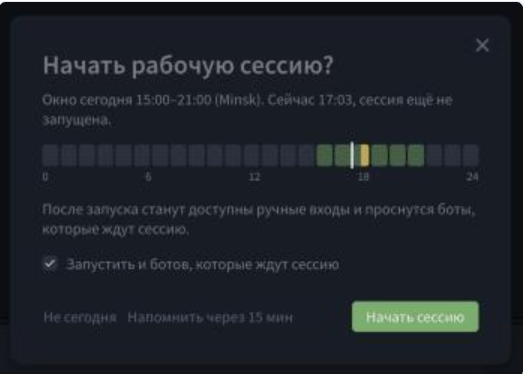
You can also start the session from the widget panel.The window's end time does not change:if the schedule is 08:00-17:00 and you start at 09:00, new entries are allowed only until 17:00. If an exclusion is active when the session starts, the terminal informs you. Starting the session does not override exclusions. Early start - “Start Now”The next session can be started ahead of schedule, butno earlier than 6 hours beforehand. The “Start Now” button appears in the widget panel.
4. Manual orders and the WH restrictionWH label in the order formWhen a trading window is open and the schedule applies to manual orders, aWH label with the window's end time appears below the “Total” field in the entry-order form, for exampleWH 21:00. This means the order will be canceled at the end of the trading window if it remains unfilled. The label is enabled by default, but you can click to disable it when placing the order. That specific order will then remain active after the window closes unless it is canceled for another reason. 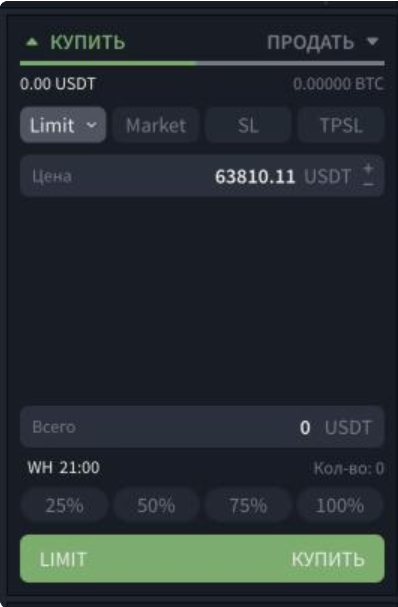 The WH label is available only forentry limit and conditional orders that may remain on the order book or await a trigger. It does not appear on market orders, the TP/SL tab, or SMART orders with a take-profit or stop-loss. WH cannot be enabled outside a trading window or when approximately 20 seconds or less remain. Hovering over WH displays a tooltip with the cancellation time and remaining validity period. Who cancels the order, and where to check
After placement, the order displays a WH label in the“Open Orders” table. The order history records an order canceled by the schedule with the status“Canceled: Working Hours”. If the order is partially filled before the window closes, only its unfilled remainder is canceled. The filled portion remains in the open position and is not automatically closed. 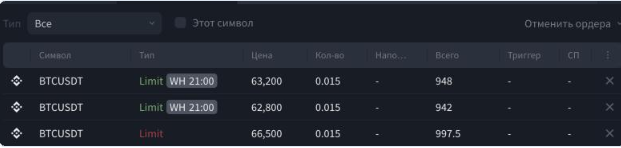 Protecting against new entries outside working hoursYou can choose one of three modes for manual entries in account settings:
Protection applies toentries only. It does not block exits, take-profits, or stop-losses. These restrictions apply to orders created in the terminal. The public API and MCP arenot subject to this check. Quick orders from the symbol list In “Warn” mode, quick orders from the symbol list are placed without a confirmation dialog and without a WH label. In “Block” mode, the server rejects the entry. Extending a window with existing WH ordersOrders placedbefore an extension keep their original cancellation time. Therefore, after clicking “+1 Hour”, the terminal offers to extend the expiry of existing WH-restricted orders. Example:the window ends at 17:00. You extend trading until 18:00. The terminal asks whether WH order cancellations should also move from 17:00 to 18:00.
5. Working Hours for trading strategiesEach trading strategy can have its own schedule. The setting is located in the“Working Hours” section of the strategy creation or editing form. ForChannel, this section is on theOther tab. Three scheduling modes
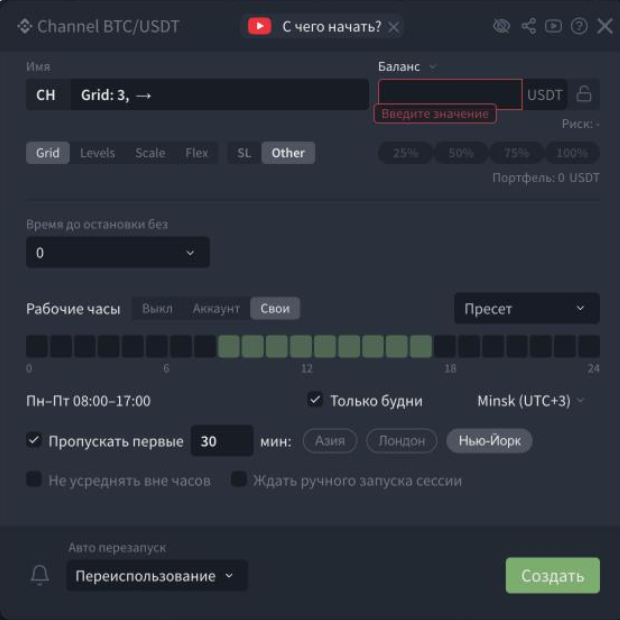 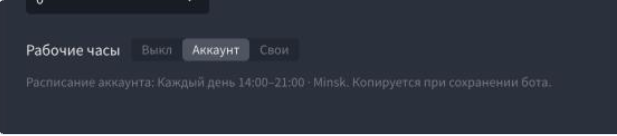 Additional settings in “Custom” mode
If different weekdays have different schedules, a full weekly grid is displayed instead of a single hourly strip. What a strategy does outside working hours
Example: an open position A strategy places its first buy before 17:00. At 17:00, the trading window closes. The position stays open, and its take-profit and stop-loss orders remain active. If the separate restriction on averaging is disabled, the strategy may place another buy after 17:00. Changing the schedule of a running strategyThe configuration form of a running strategy includes“Apply to Running Bot” (the label used in the interface). It applies the updated schedule immediately without stopping or restarting the strategy. In “Account” mode, the schedule is copied when the strategy is saved. If you later change the account schedule, the running strategy keeps its existing copy. If strategies still use an older copy, the widget panel displays“Bots on Previous Schedule: N” and a“Update Bots” button. This sends the new account schedule to running strategies configured to use account hours. A strategy created during an already-active, manually started window is treated as having started that session. Schedule statuses in the strategies tableThe current Working Hours status is displayed next to each strategy name. AWH filter button shows only strategies with Working Hours enabled. 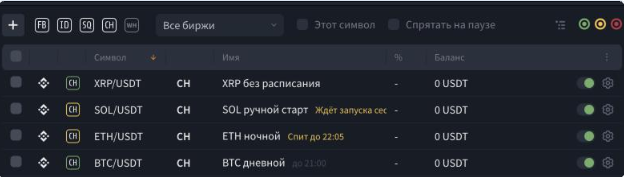
Outside its trading window, the strategy's type icon is displayed as waiting. 6. Notifications and chart displayTerminal notificationsWhen trading windows open or close, the terminal shows informational messages such as:
Notifications are shownonly while the terminal is open. Separate Working Hours notifications are not sent to Telegram. Shading non-trading hours on the chartOn the trading chart, time outside the account schedule is shaded with a semi-transparent overlay, while active trading windows retain the regular background. The chart also displays upcoming days. Importantly, the chart followsthe account schedule, not the individual schedules of trading strategies. 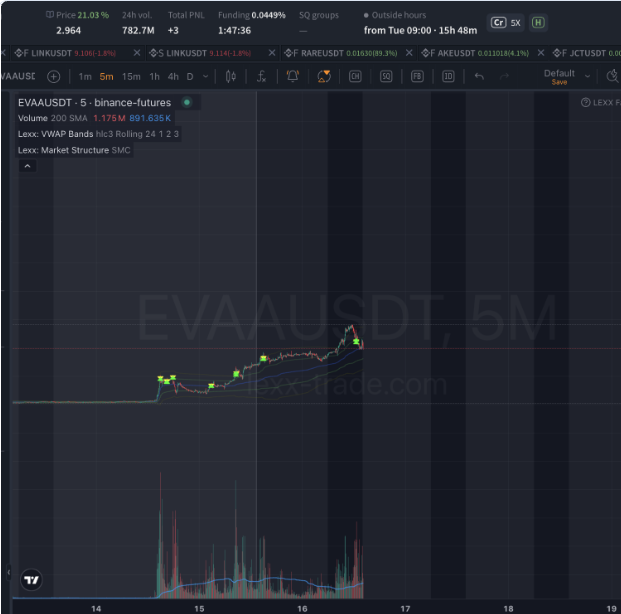 7. Daylight saving time changesSchedules are stored relative to UTC. When clocks change in a selected time zone or the region of a trading session, the displayed schedule may shift by one hour relative to local time. If such a shift occurs, the widget panel displays“Time Change: Schedule Shifted by One Hour” and an“Update” button to recalculate the account schedule using the new offset. Strategies with custom schedules are not recalculated automatically. Open each such strategy and save its settings again. Time zones without seasonal clock changes, such as Dubai, are not affected. 8. Limitations and important considerations
Monitor open positions separately Time-based entry restrictions do not replace stop-loss orders, risk management, or monitoring open positions. Exit orders may still fill outside working hours, and trade PnL may change. 9. Frequently asked questionsWhy can't I see the Working Hours widget?Check your license: the feature requires PLUS or above and a signed-in account. If both conditions are met, enable the widget using the “+” menu in the terminal header. A dash appears instead of the time. What should I do?The schedule may not have loaded. Open the widget panel and click “Retry”. The terminal automatically retries approximately every 30 seconds. If the problem persists, contact support. Why was my limit order canceled automatically?Check whether the WH label was enabled when you placed it. If so, the order is canceled when the trading window ends. The history will show “Canceled: Working Hours”. You can disable WH on subsequent orders. Why can't I open a new position?You may be outside working hours with “Block” enabled, an exclusion may be active, or a manual session may not have started. Check the widget panel and entry-protection settings. Why does the terminal ask me to confirm an entry?“Warn” mode is enabled. When placing an entry outside the schedule, the terminal requests confirmation. You can change the “Entries Outside Hours” setting if needed. Why are the “+1 Hour” or “Start Now” buttons missing?Check strict mode and the time remaining until the next window boundary. Early start is available within 6 hours of the next window; extension is available when the window is closed or no more than one hour remains. Why is my previous schedule still in effect after editing it?In strict mode, changes take effect only on the following day (UTC). The widget panel indicates when the new settings will apply. Why isn't a strategy opening new trades?It may be outside its own working hours, waiting for an exclusion to end, or awaiting manual session start. Check the status next to its name and its Working Hours settings. Why did a strategy continue averaging outside working hours?This is allowed by default if the position was already open. Enable “Do Not Average Outside Hours” to prevent additional entries. Also check for an early start and which schedule is stored in the strategy. Why didn't a strategy close its position at the end of the day?Working Hours block new entries but do not close open positions. Exits are managed by the strategy's regular take-profit, stop-loss, or other exit mechanisms. Why did my schedule shift by one hour?This may be due to a daylight saving time change. Use “Update” in the account widget panel. Open and re-save strategies with custom schedules. Why is WH missing or disabled in the order form?WH is not displayed for exit orders, market orders, the TP/SL tab, or SMART orders with a take-profit or stop-loss. It is also unavailable outside a trading window and approximately 20 seconds before the window closes. Check “Apply to Manual Orders”. Why was a stop-loss canceled by Working Hours?A stop that reduces an existing position should not be restricted by the schedule. Check whether the position existed when the stop order was created. Without an open position, the order might have been identified as an entry. If the position was already open, contact support with the details. Why does the schedule look different on another device?The settings are stored in your account, but a browser tab may not have refreshed its data yet. Switch back to the tab or reload the terminal page. Will the restrictions apply to orders sent through the API?No. Protection ofmanual entries outside the schedule only applies to orders created in the terminal; it does not check orders sent through the public API or MCP. LEXX Trading Platform - a guide to the “Working Hours” feature. |
Was this article helpful?
That’s Great!
Thank you for your feedback
Sorry! We couldn't be helpful
Thank you for your feedback
Feedback sent
We appreciate your effort and will try to fix the article
Ready to try it live?
Everything in this guide works in the LEXX terminal — exchange API connections, trading strategies and automation.
Open the terminal About LEXX Platform