What's New in This Update
Version: 1.3.1
Release Date: 11.11.2026
1. Fibo Strategy: "Repeat Below" Mode
The Fibo strategy can now trade multiple times within a single run. It first executes the main grid (Phase A), then the same grid one level lower (Phase B). If the market makes a new high, the process starts again. All profits remain within the same run, while the deposit is not increased.
The mode is enabled using the "Repeat Below" checkbox at the bottom of the strategy window. The ▾ arrow next to it opens the phase settings.
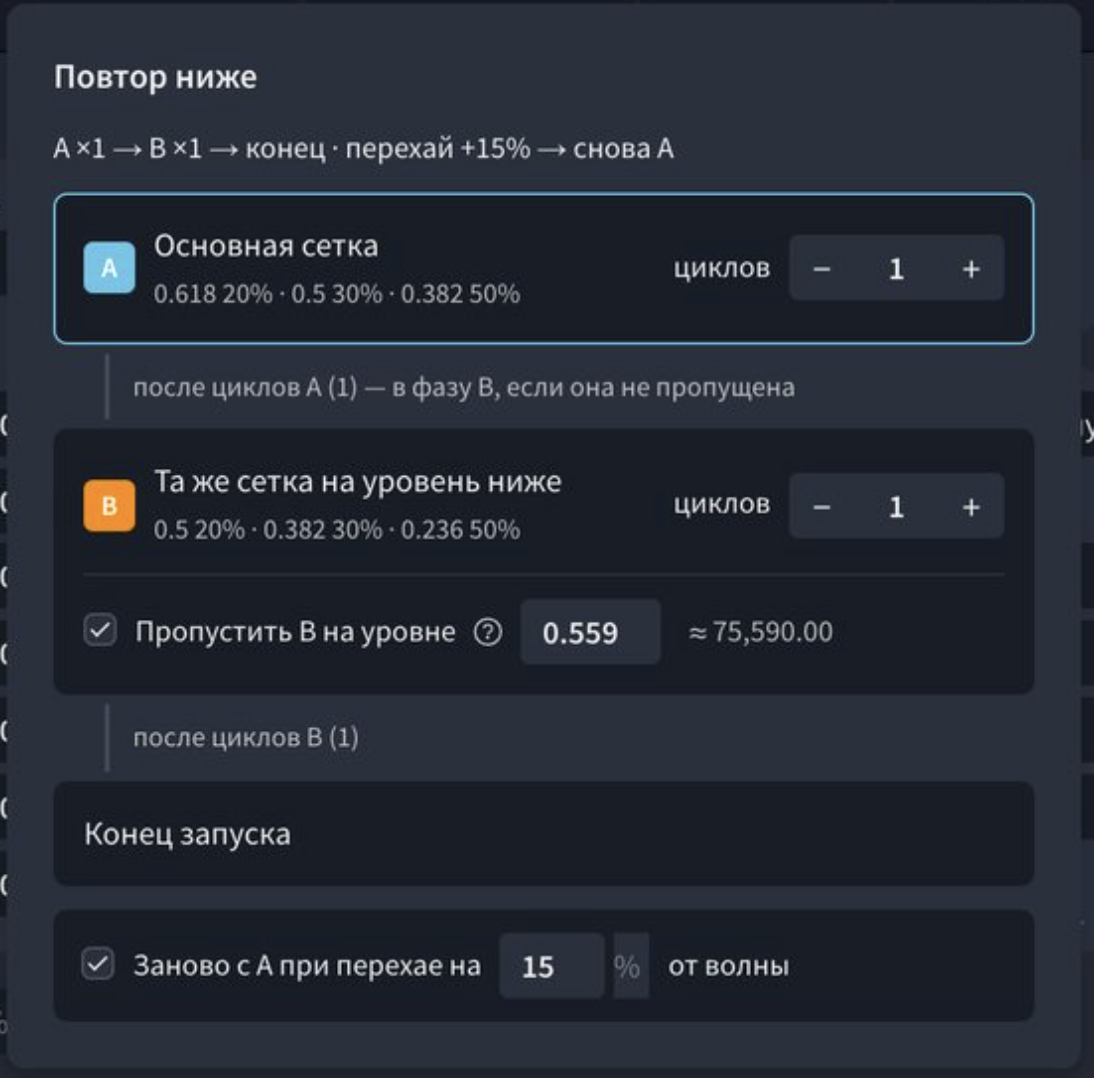
Available settings:
- Phase A and B cycles: how many consecutive times each phase is traded. An empty field means "unlimited".
- Skip B at Level (default: 0.559): if the price reaches this level during Phase A, Phase B will not start until a new high or a reset occurs.
- End Early at Level: available when Phase B has more than one cycle. The strategy completes the current cycle and ends the run. This is not a stop-loss.
- Restart from A on a New High by ... % of the Wave (default: 15%): returns the strategy to Phase A with fresh cycles. This works when "Fibo Auto-Adjustment" is enabled.
Managing a Running Strategy
A phase button appears next to the "Stop" and "Restart" buttons, for example, "Phase A · 1/3". It allows you to reset cycles or switch to a specific phase. Phases can only be changed when the strategy is not in an active trade.

Learn more: "Fibo Strategy" and "Fibo Strategy: Repeat Below" [LINK].
2. Channel Strategy: New Flex Type
Flex has been added to the existing Grid, Levels, and Scale types. With the other types, the price range is set on the chart and remains fixed. Flex uses a dynamic range: it is built around the current price and moves with it on the 1-hour timeframe.
How it works:
- The strategy places a ladder of buy orders below the current price, with each subsequent level having a larger order size (martingale).
- As the price falls, the average entry price decreases, and a single take-profit is moved to a specified percentage above the new average.
- After the entire position is sold, a new ladder is built from the selling price.
- As long as no purchases have been executed, the ladder follows the price upward.
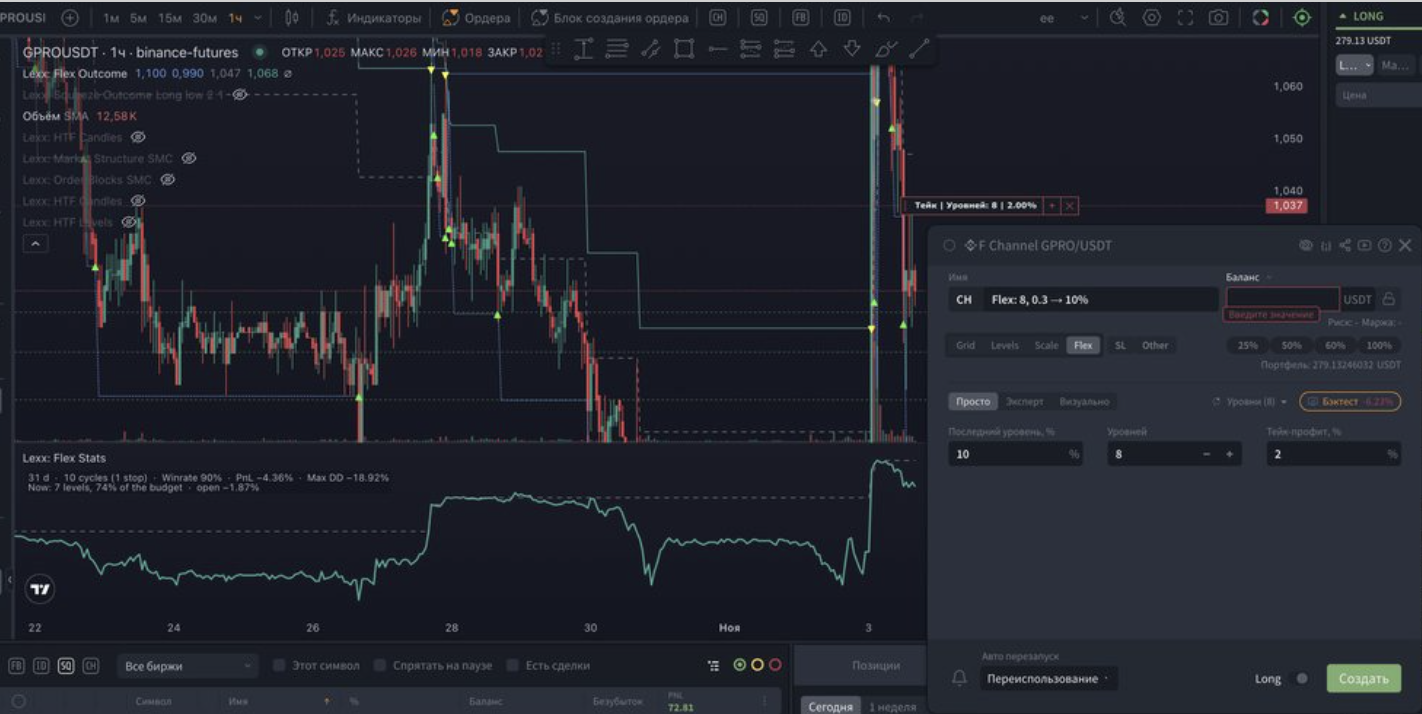
To create the strategy, go to "Strategy" → Channel → Flex. There is no need to draw price levels on the chart. Simply specify the balance and check the three main fields: "Last Level" (10%), "Levels" (8), and "Take-Profit" (2%).
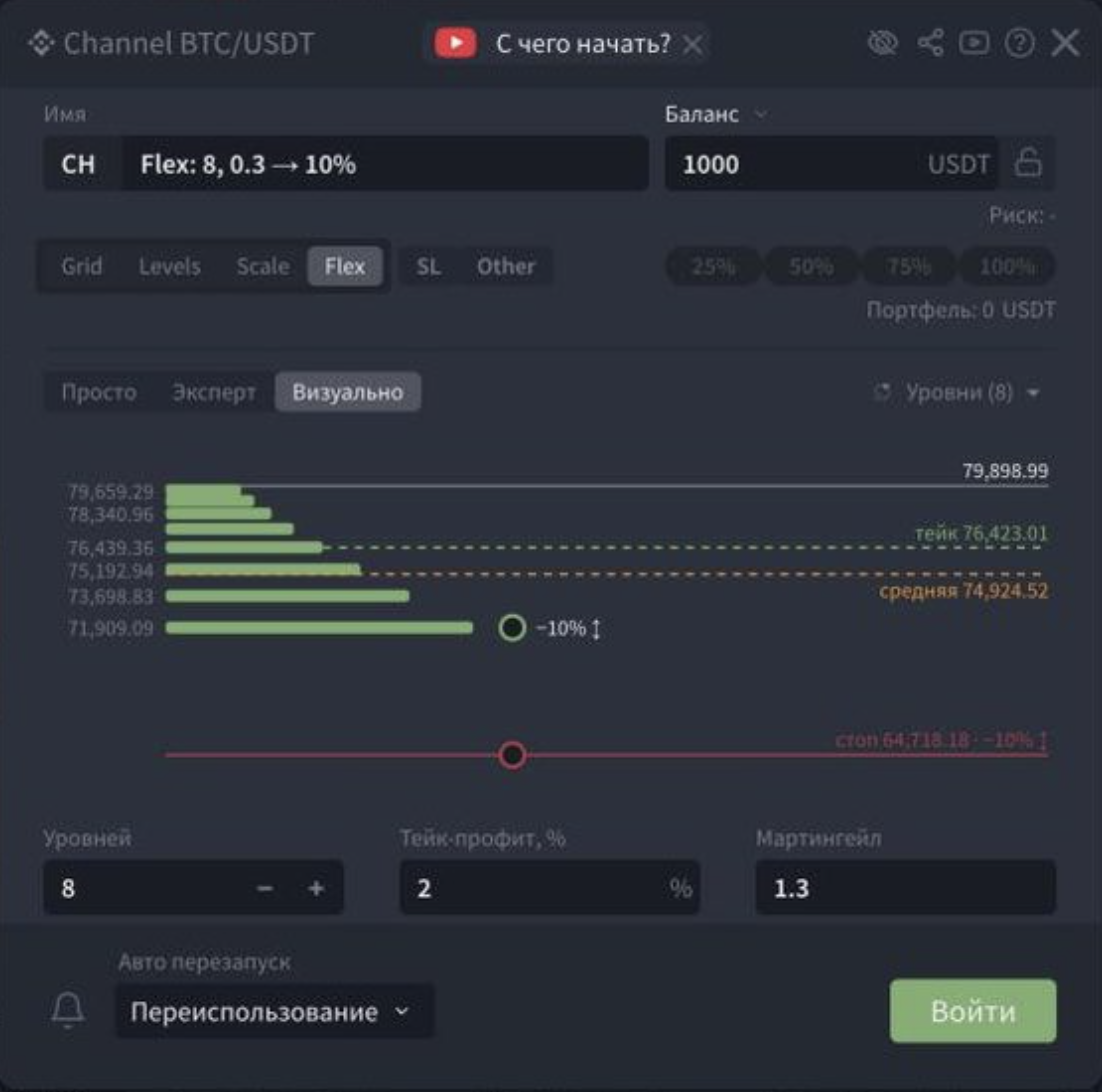
- Three window modes: "Simple", "Expert", and "Visual". All three edit the same settings.
- Filters (Expert mode): a VWAP-based upper limit for ladder adjustment, prevention of purchases below VWAP, and prevention of upward ladder adjustment after a sharp 24-hour price increase.
- Stop-Loss is enabled by default at 10% below the last level.
- Auto-Restart: "Reuse", "Accumulate USDT", or "Off".
Learn more: "Channel Strategy: Flex Type" and the main "Channel Strategy" article.
3. Intraday Strategy: Two New Settings
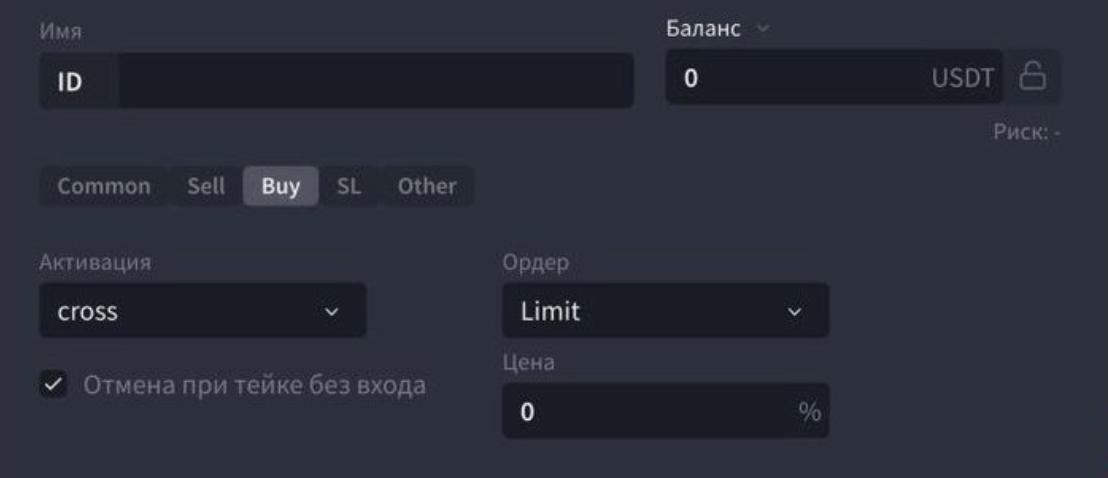
Cancel on Take-Profit Without Entry (Buy tab, below the "Activation" field). If the price reaches the midpoint between the entry and take-profit, then reaches the take-profit without the entry order being filled, the strategy cancels the entry order and stops.
The reason for stopping is sent to Telegram. This prevents the strategy from entering a trade based on a setup that is no longer valid.
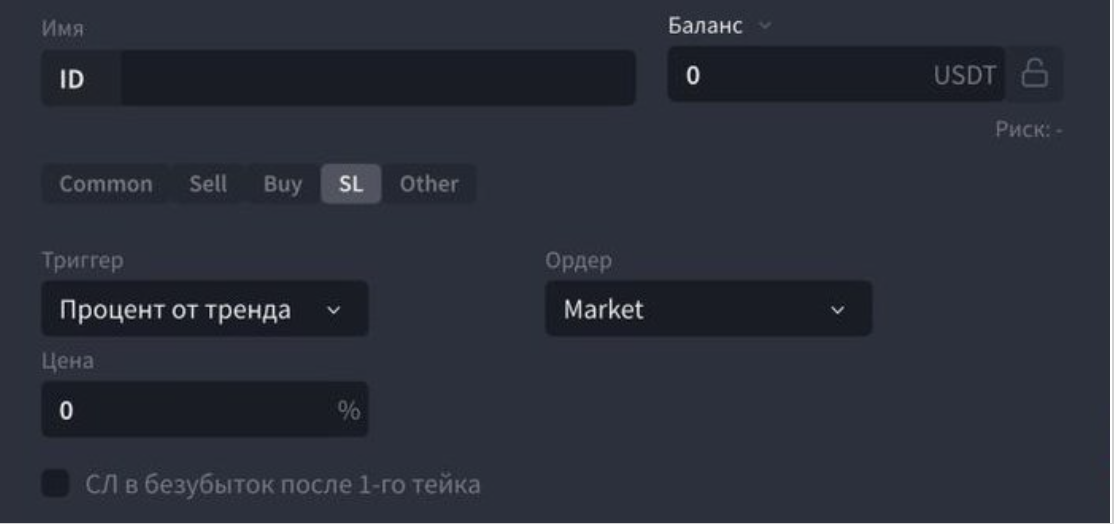
Move SL to Breakeven After the First Take-Profit (SL tab, below the "Price" field). Once the first take-profit order has been fully executed, the strategy automatically activates a breakeven stop-loss. This is the same stop-loss that can be enabled using the "Add Breakeven Stop-Loss" button.
The original stop-loss is not removed. Whichever stop-loss level the price reaches first will be triggered. This setting is disabled by default.
Learn more: "Intraday Strategy".
4. Squeeze Strategy: New Features
I. Buy Levels
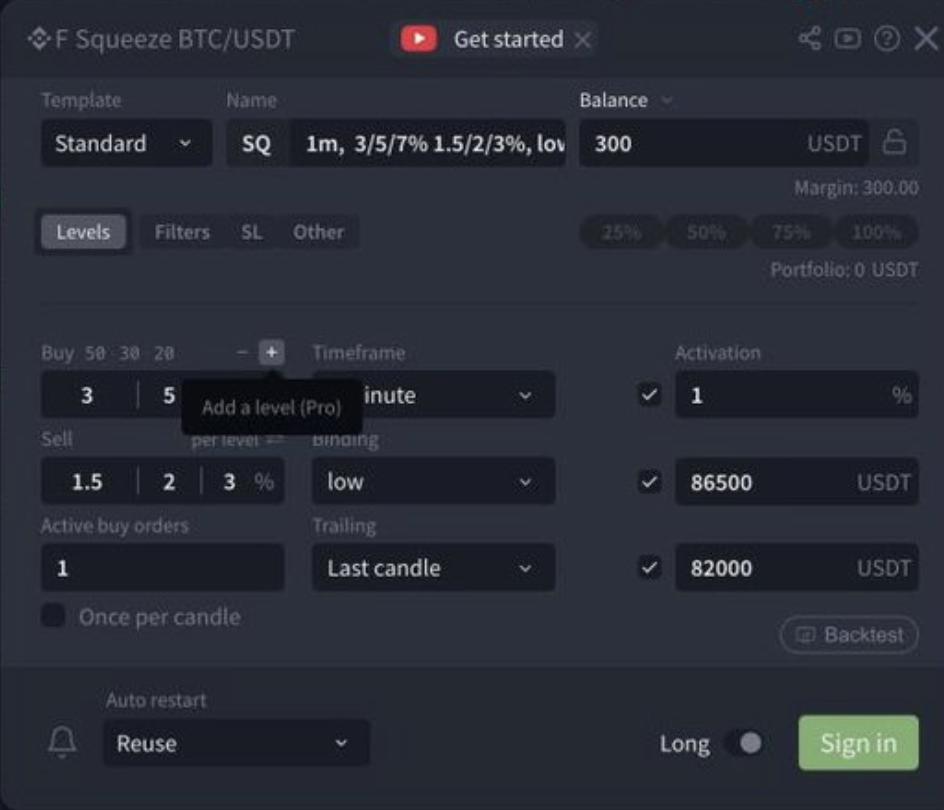
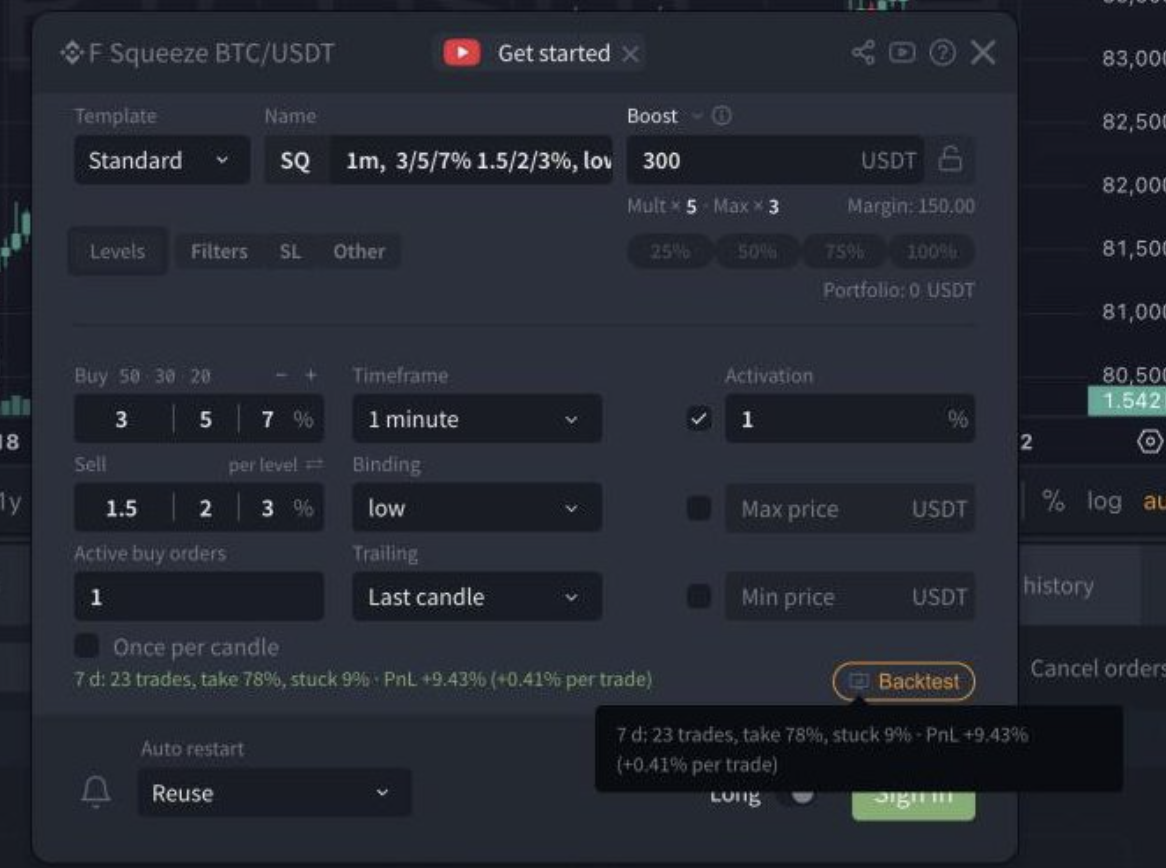
Instead of a single purchase, the strategy can now place a ladder of up to 5 buy levels, for example, 3 / 5 / 7% below the trailing point. Levels can be added or removed using the − / + buttons in the Buy section header. Each level has its own volume allocation (minimum 10%) and take-profit.
II. Filters
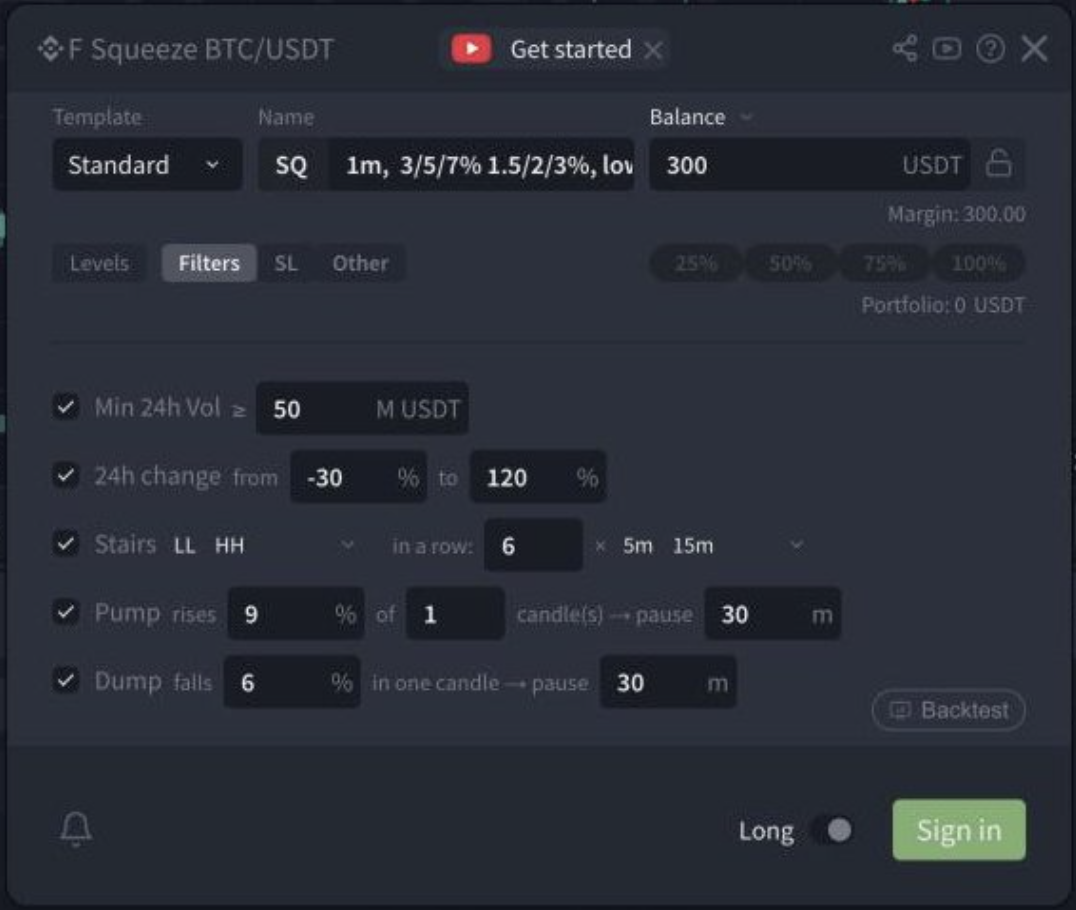
The new Filters tab helps prevent entries during unfavorable market conditions:
- Min 24h Vol: allows entries only when the trading pair's 24-hour volume is not below the specified value.
- 24h Change: allows entries only when the 24-hour price change falls within the specified range.
- Stairs: prevents entries while several consecutive candles form a staircase pattern of the selected type (LL, HH, HL, LH).
- Pump: pauses entries after a sharp price increase within a candle.
- Dump: pauses entries after a sharp price decrease within a single candle.
III. Move Take-Profit to the Entry Price
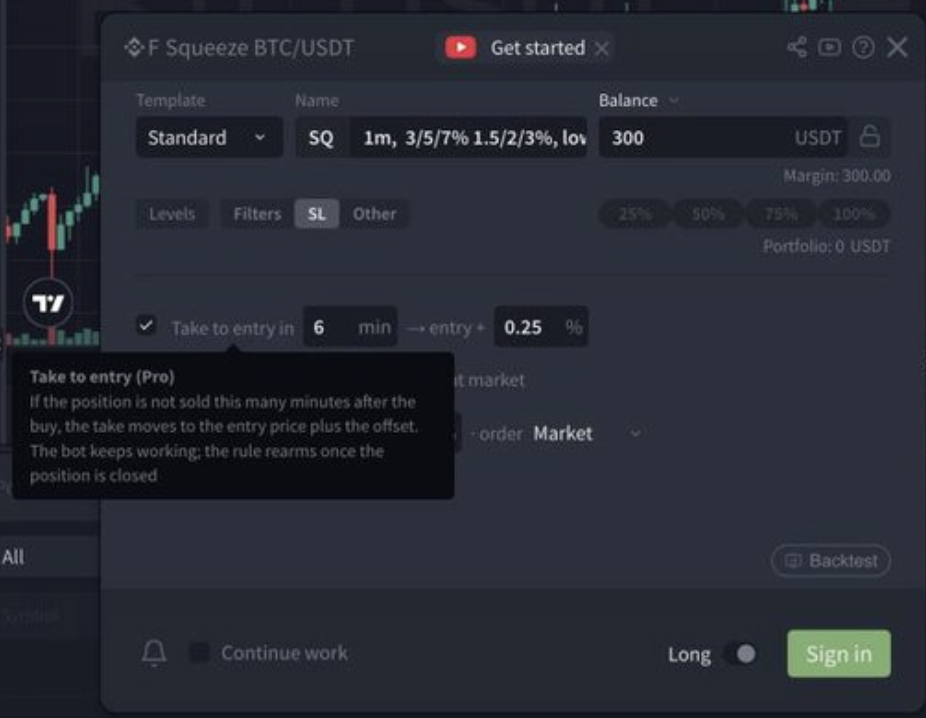
In the SL tab, if a position has not closed within N minutes after purchase, the take-profit is moved to the entry price + X% (default: 5 minutes and 0.1%). The strategy does not stop, and the timer is reset after the position closes.
IV. Boost Balance
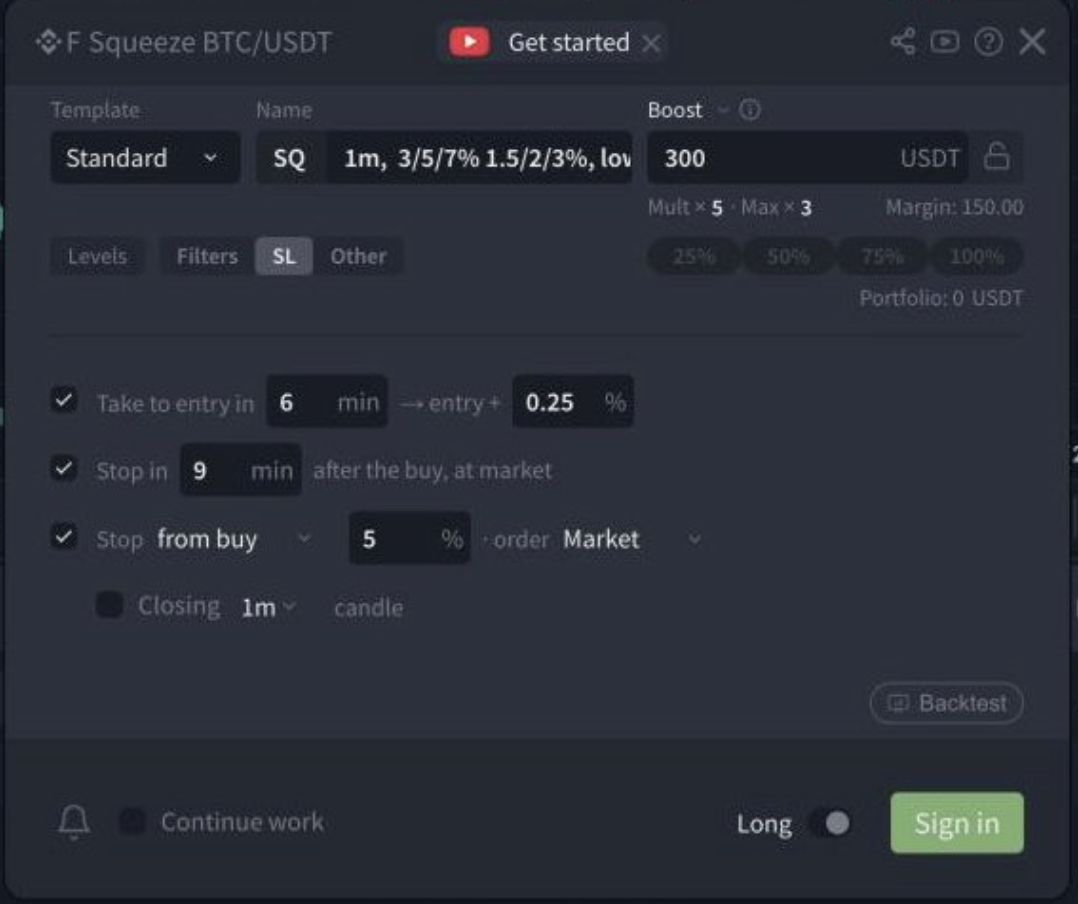
The new balance mode can be selected from the "Balance" dropdown at the top of the strategy window. The strategy trades with an amount several times larger than the base balance, while realized profits are added to the trading bank and increase the next entry amount. Growth is limited by the Max × parameter. Available fields: Mult × (default: 5) and Max × (default: 3).
Learn more: "Squeeze Strategy" and the new articles covering buy levels, filters, and Boost.
5. Backtesting for Squeeze and Channel (Flex) Strategies
A new "Backtest" button has been added to the strategy window. It runs the current settings against historical chart candles to show how the strategy would have traded.
- Click "Backtest": the chart switches to the strategy's timeframe, and indicators showing the results are added. The button turns orange, and the backtest summary appears next to it.
- You can move the strategy window to inspect the markers on the chart. Settings are captured when the button is clicked. After changing the settings, turn the backtest off and on again.
- Clicking the button again removes the indicators and restores the previous chart timeframe. They are also automatically removed when the strategy window is closed.
Squeeze: entry, take-profit, and stop-loss markers ("Lexx: Squeeze Outcome") and a statistics panel ("Lexx: Squeeze Outcome Stats"). Activation, filters, and the "Move Take-Profit to Entry Price" option are not included in the calculation.
Channel (Flex): price markers ("Lexx: Flex Outcome") and a statistics panel ("Lexx: Flex Stats") showing the number of cycles, Win Rate, PnL, maximum drawdown, and the current state of the buy ladder.
Learn more: "Backtesting Strategies on the Chart" [LINK].
6. LEXX Indicators on the Chart
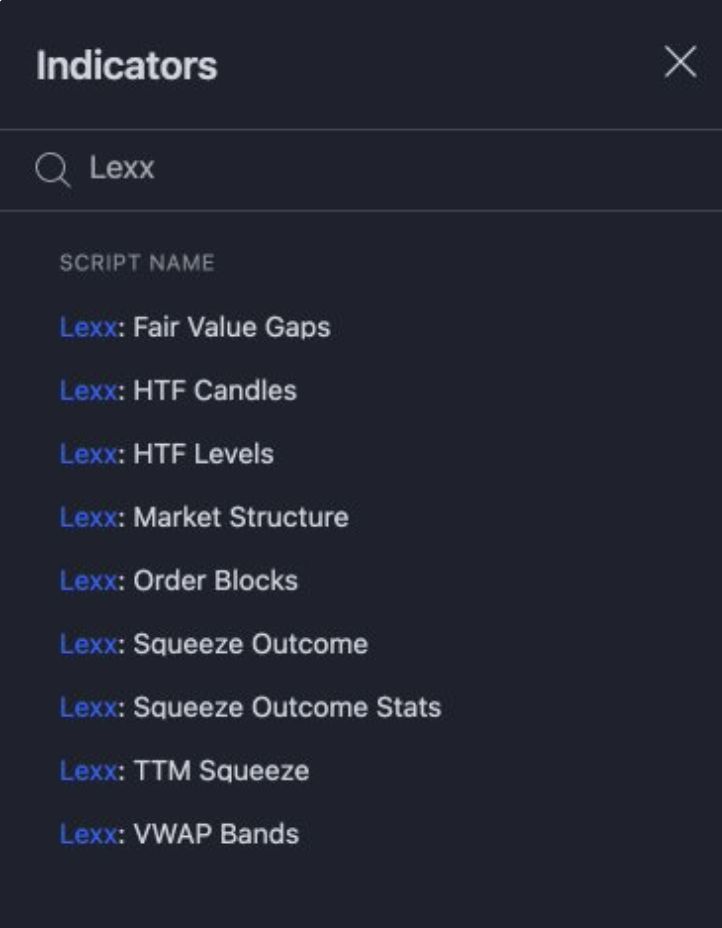
All indicators use the "Lexx:" prefix. To add an indicator, click "Indicators" on the chart and search for "Lexx". Settings can be opened by double-clicking an indicator or by clicking the gear icon in its legend.
| Indicator | What It Shows |
|---|---|
| Lexx: VWAP Bands | Volume-weighted average price and ±1/2/3σ bands |
| Lexx: HTF Levels | Daily, weekly, monthly, and trading session levels |
| Lexx: HTF Candles | Higher-timeframe mini-candles with a countdown to candle close |
| Lexx: TTM Squeeze | Volatility compression, squeeze release, and momentum direction |
| Lexx: Market Structure | BOS / CHoCH structure breaks and HH / HL / LH / LL swing points |
| Lexx: Order Blocks | Order block zones |
| Lexx: Fair Value Gaps | Three-candle imbalance zones |
| Lexx: Squeeze Outcome / Stats | Squeeze strategy backtesting results |
| Lexx: Flex Outcome / Stats | Flex strategy backtesting results |
| Lexx: Volume Delta, CVD | Market buys minus sells per candle and cumulative volume delta |
| Lexx: Funding Rate | Funding rate and its forecast |
| Lexx: Open Interest, Open Interest Delta | Open interest and its change per candle |
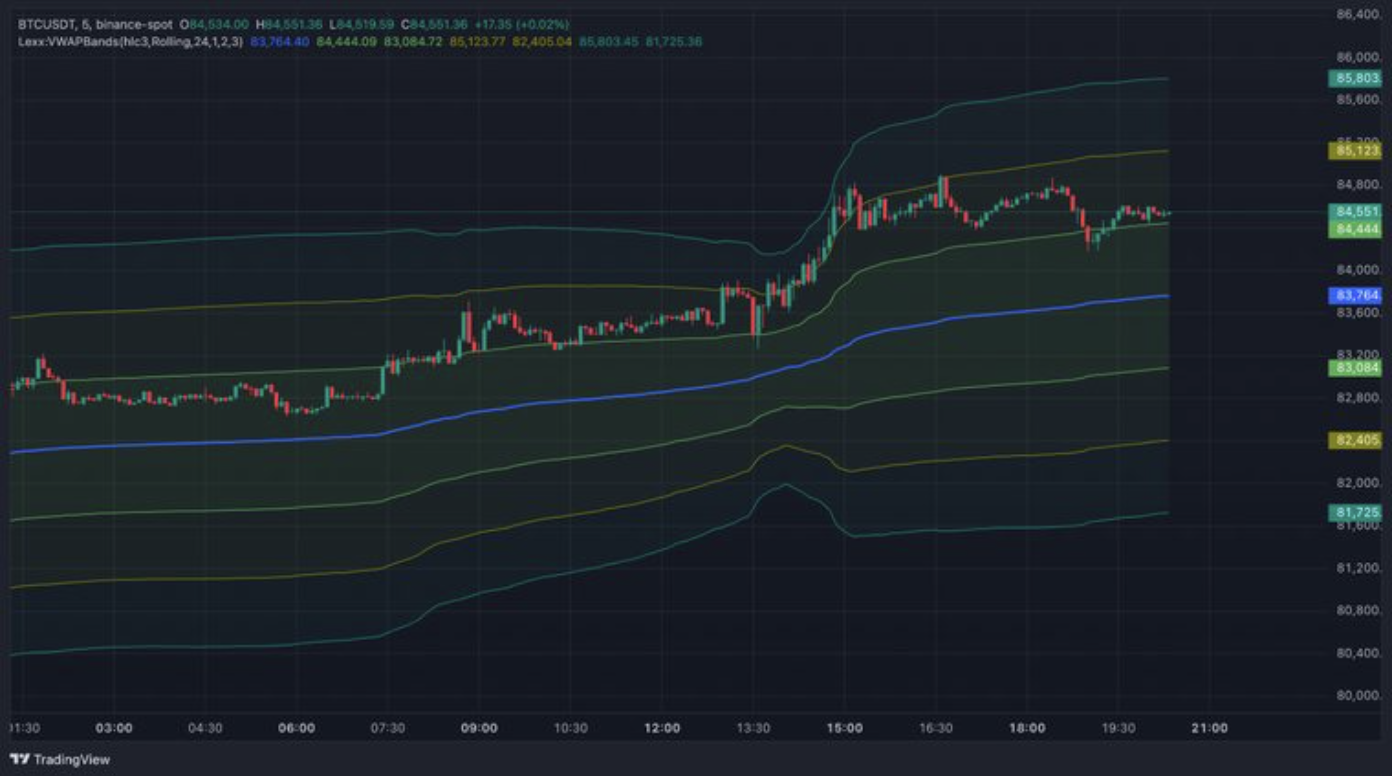
- Time in all indicators is calculated in UTC: the day starts at 00:00, the week starts on Monday at 00:00, and the month starts on the 1st at 00:00.
- Indicators are calculated in the browser using candles from the current chart and do not affect strategy operation. The exception is backtesting indicators, which use the strategy's settings.
- Derivatives indicators are not supported on every exchange: Volume Delta and CVD work on Binance; Open Interest works on Binance and Bybit futures; Funding Rate works on Binance, Bybit, OKX, and Hyperliquid perpetual futures.
Learn more: articles about LEXX indicators [LINKS].
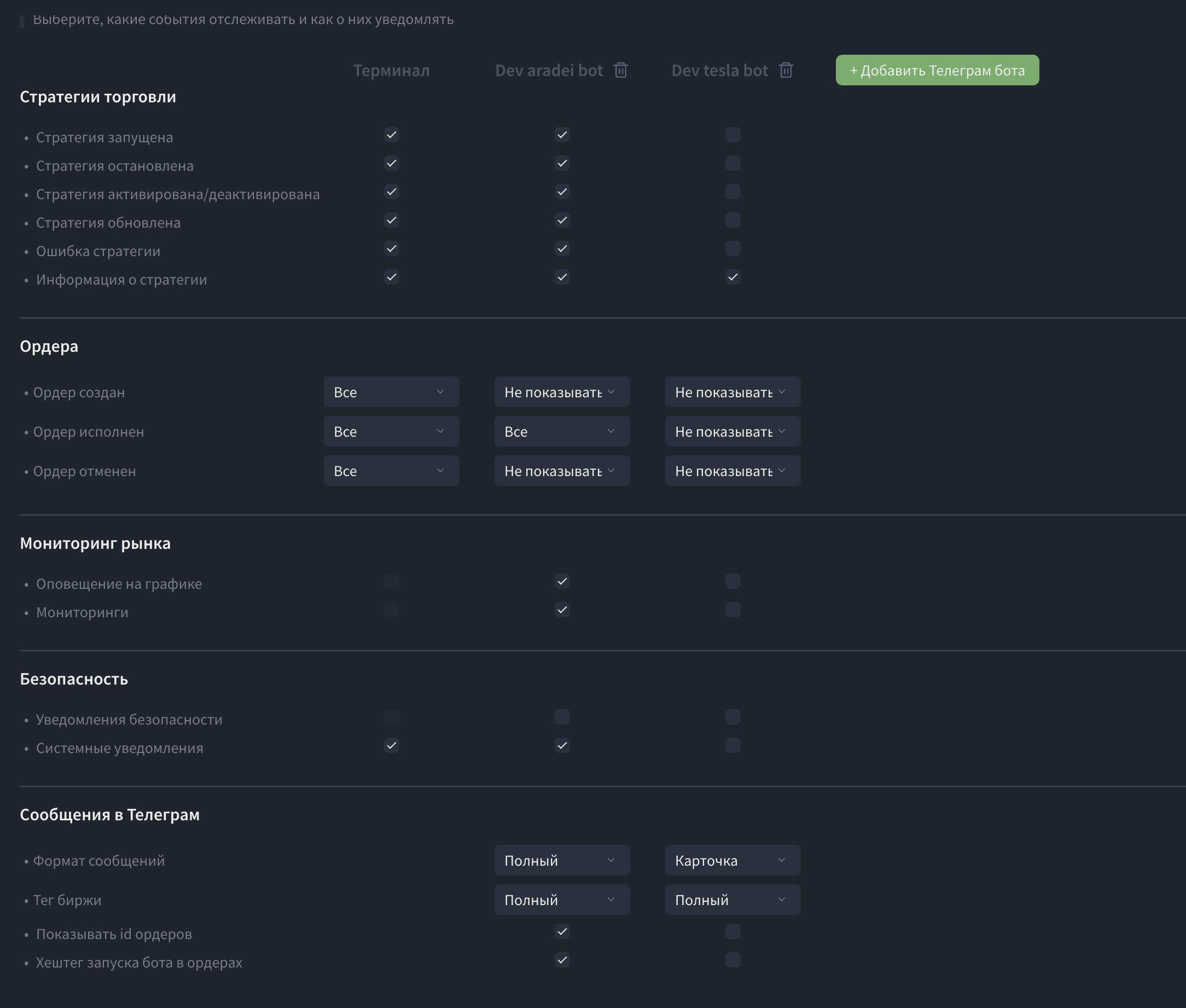
7. Advanced Notification Settings
The notification system has been updated. You can now separately choose which events are displayed in the terminal and which are sent through connected Telegram bots.
Notifications can be configured for strategy operation, orders, market monitoring, and system events.
Additional Telegram settings include message format, exchange display, order IDs, and other information.
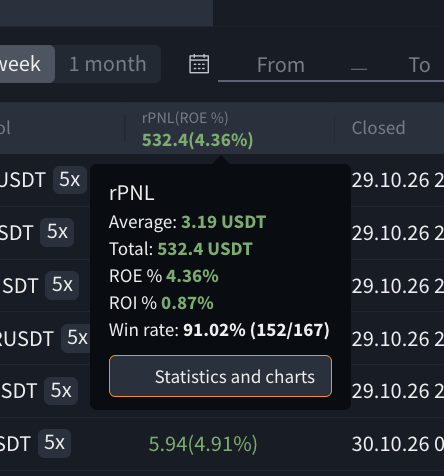
8. Position History Analytics (PLUS and Above)
Advanced statistics for closed positions have been added, including realized PnL (rPNL), average and total profit, ROE, ROI, and the percentage of profitable trades (Win Rate). You can also open detailed statistics and charts.
Other Improvements and Fixes
- Several bugs identified after release 1.3 have been fixed.
- Some issues are still being addressed.
We hope you enjoy this update and that it makes your experience with the platform even more convenient. We are always open to your ideas, which you can submit through the profile menu at the top of the terminal.
Note for Users:
- We recommend refreshing the platform page after the update to ensure your browser loads the latest data.
Was this article helpful?
That’s Great!
Thank you for your feedback
Sorry! We couldn't be helpful
Thank you for your feedback
Feedback sent
We appreciate your effort and will try to fix the article
Ready to try it live?
Everything in this guide works in the LEXX terminal — exchange API connections, trading strategies and automation.
Open the terminal About LEXX Platform