1. Go to Platform Settings
Open the Settings section from the main terminal window by clicking the icon in the upper-right corner.
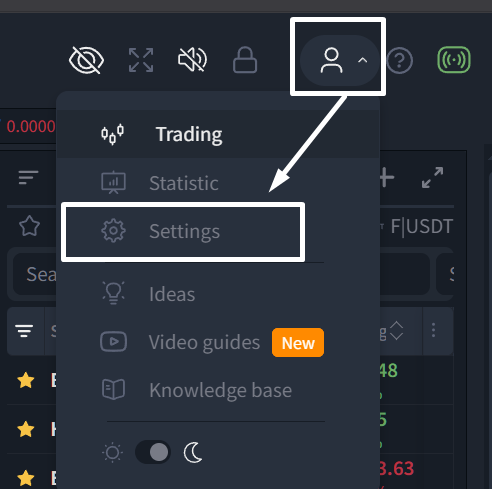
In the Settings section, select API Keys, click Add API Key, and choose Bybit.
The connection settings will display the IP addresses required to create the API key.
Copy them using the Copy button.
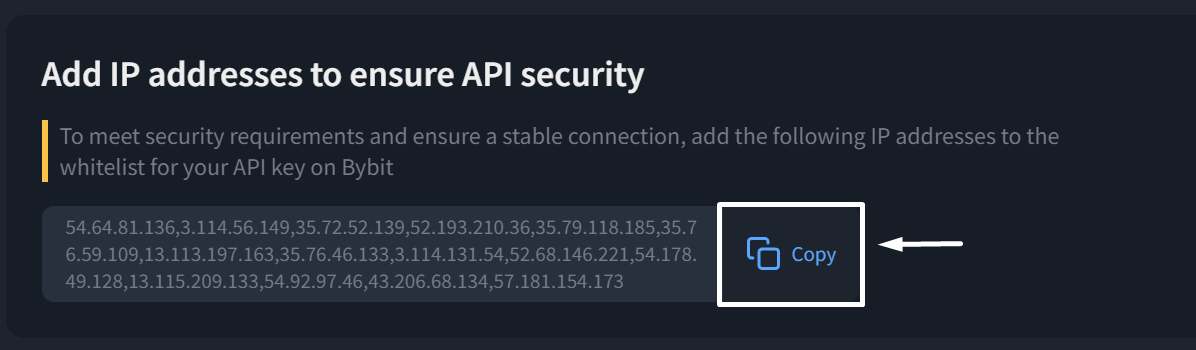
Important: Do not close the platform settings page. The copied IP addresses will be needed when creating the API key on Bybit.
Step 2. Create an API Key on Bybit
Go to the official Bybit website and sign in to your account.
Open the API Management section.
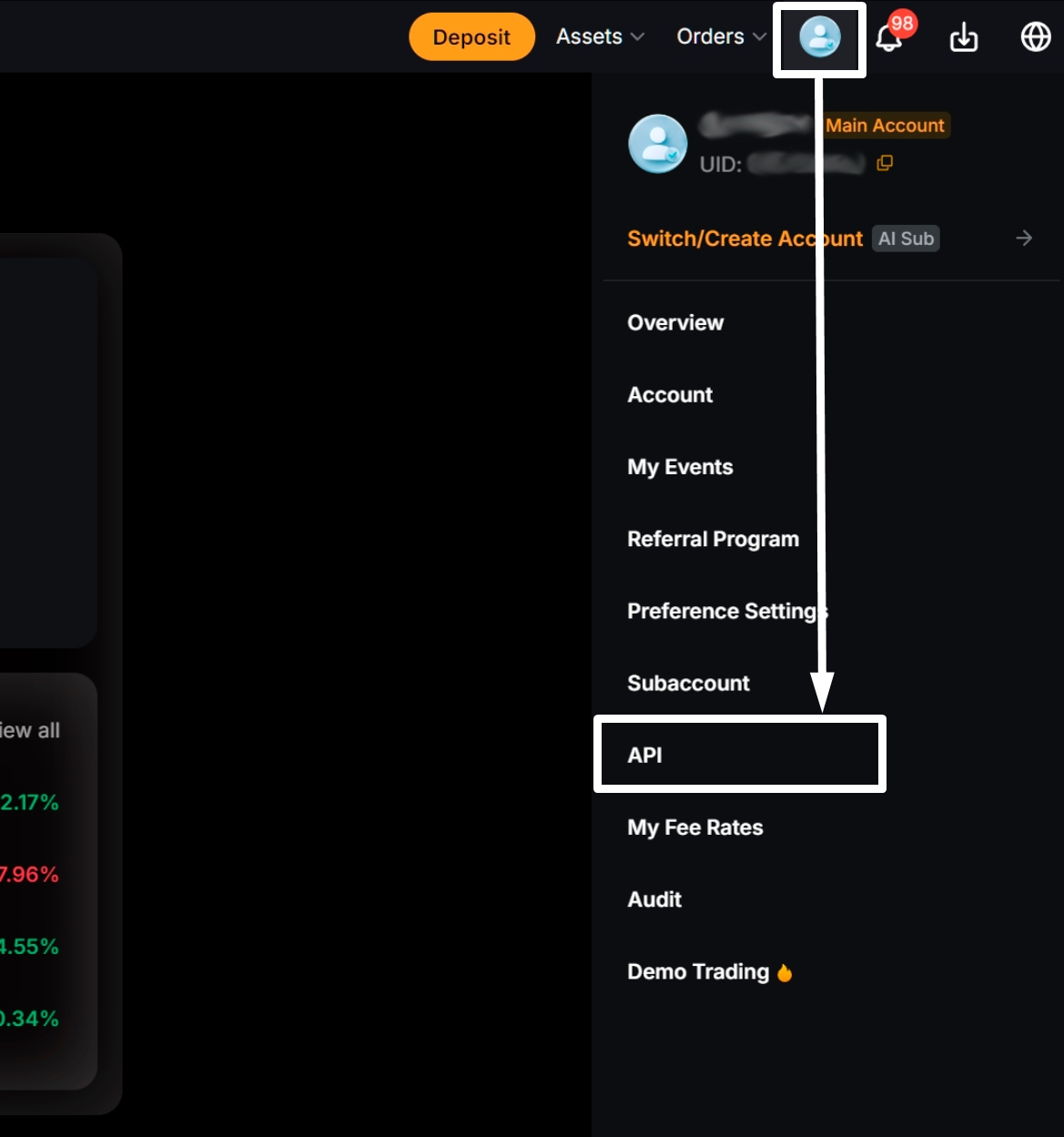
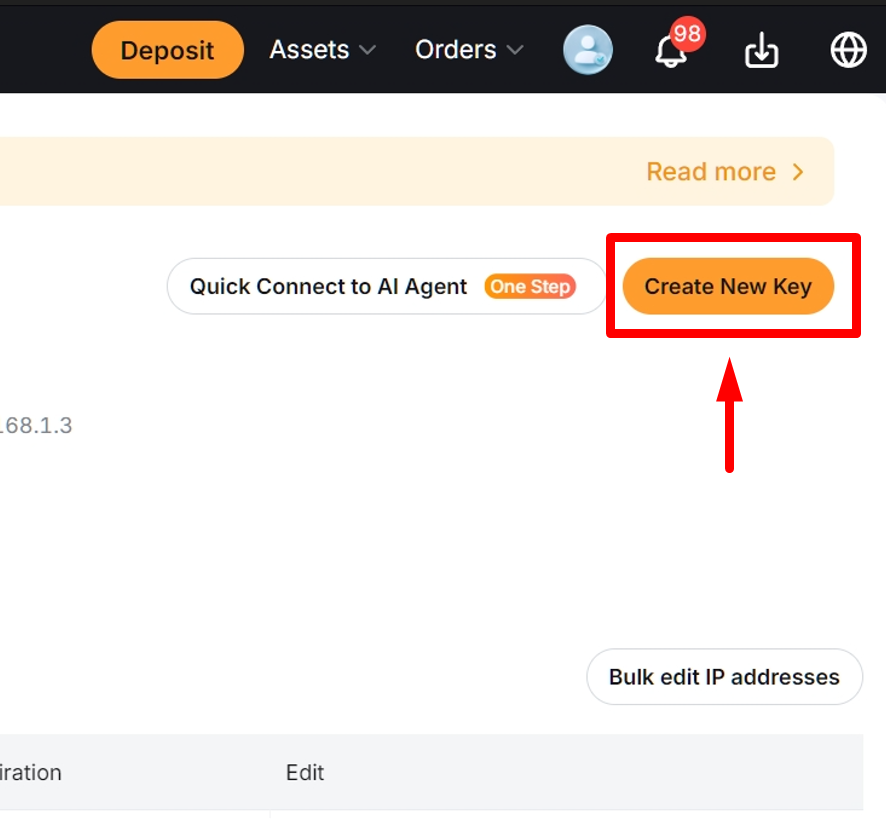
Click Create New API Key.
In the window that appears, choose System-generated API Key.
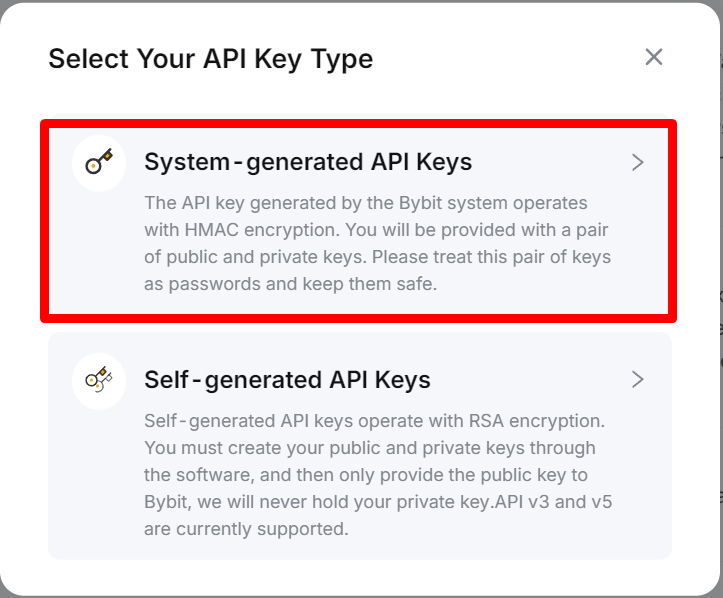
Next, you can choose one of two methods for creating the key:
- API Transaction
- Connect to Third-Party Application
If you choose Connect to Third-Party Application, simply start typing LEXX in the application field. The full application name LEXX Software Co Ltd will appear in the list. Select it.
Then:
- Select Read & Write.
- If the Unified Trading Account option is available, enable it.
- Save the API key settings (button at the bottom of the page).
If you create the key using API Transaction, specify the following:
- Enter an API Key Name so you can easily identify it later.
- Select Read & Write.
- Enable Open API Access, then paste the platform IP addresses copied in Step 1.
- If the Unified Trading Account option is available, enable it.
- Save the API key settings (button at the bottom of the page).
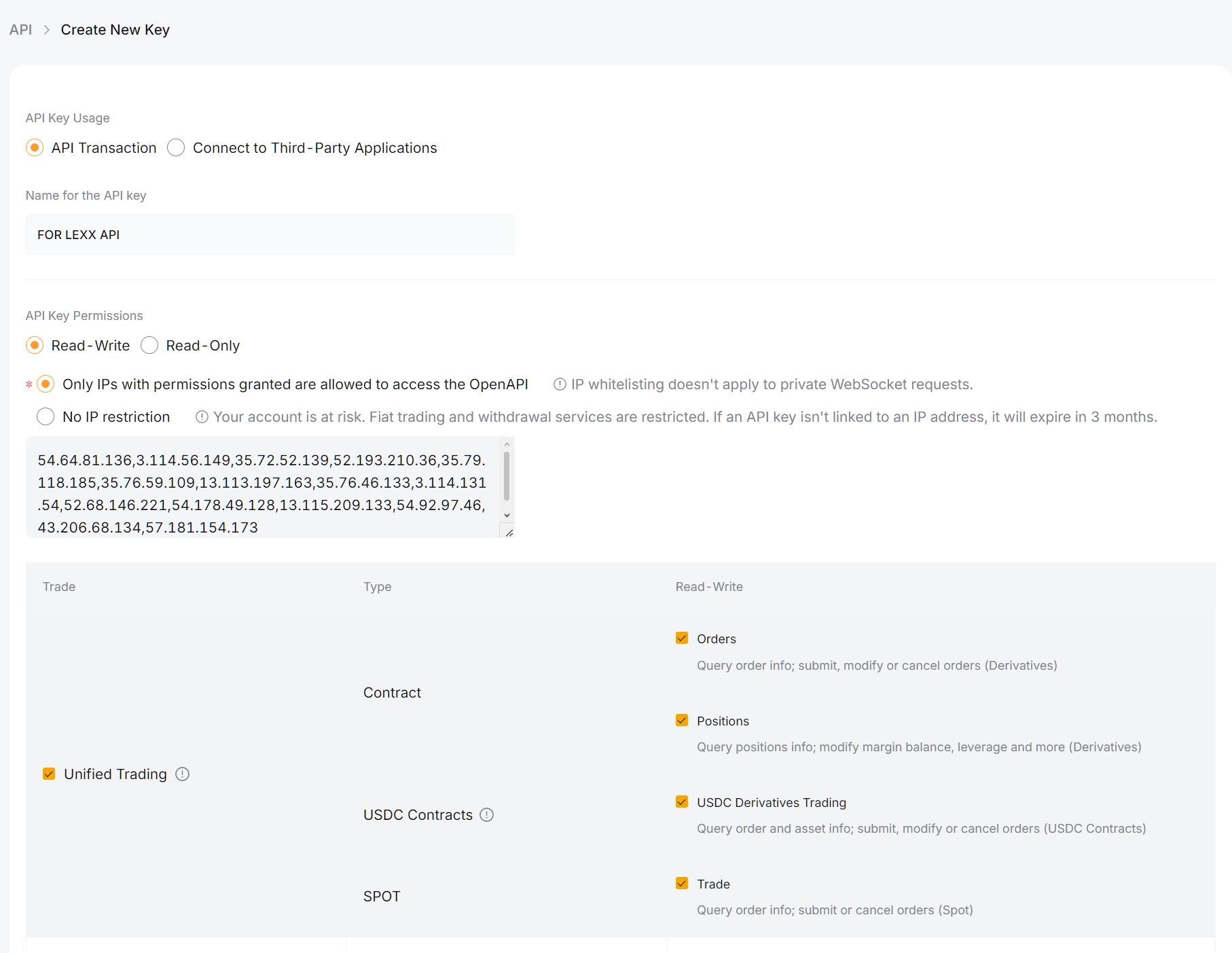
Important: Grant only the permissions required for trading and reading account data. Do not enable withdrawal permissions for the API key.
After the API key is created, Bybit will display the key details.
Do not close this window until the connection process is complete, as the keys are displayed only once.
Step 3. Add the Keys to LEXX Trading Platform
- Copy the API key information from Bybit and paste it into the corresponding fields in the platform.
- Return to the API Keys settings in LEXX:
API Key → Public Key
Secret Key → Private Key
Step 4. (Optional) If you have an EU account, enable the "For EU Accounts" checkbox.
Step 5. Select the markets you want to trade on:
Step 6. After filling in all the required fields, click Save API Keys.
Verify the Connection
After the API keys have been successfully connected, a successful connection indicator should appear.
The exchange trading balance will also be displayed on the main trading screen (if a Bybit trading pair is currently open).
Once connected, your Bybit account will be available in the LEXX terminal, and you will be able to use it for supported trading operations.
If the connection fails, check the following:
- The API Key and Secret Key were entered correctly.
- The API key has the required permissions.
- The specified IP addresses are correct (if used).
- The required trading markets are enabled.
If the issue persists, please contact LEXX Support.
How to Connect API Keys to Binance (link)

How to Connect API Keys to OKX (link)
Was this article helpful?
That’s Great!
Thank you for your feedback
Sorry! We couldn't be helpful
Thank you for your feedback
Feedback sent
We appreciate your effort and will try to fix the article
Ready to try it live?
Everything in this guide works in the LEXX terminal — exchange API connections, trading strategies and automation.
Open the terminal About LEXX Platform